GarageBand is Apple’s free digital audio workstation, offering multitrack recording, MIDI sequencing, virtual instruments and mixing tools for Mac, iPhone and iPad. Originaly released in 2004 as part of MacOs and in 2011 on iOS. Whether you’re recording vocals, programming drum patterns or building complete arrangements, GarageBand provides a surprisingly capable production environment without a subscription.
Its main attraction is accessibility. You can record an instrument, arrange Apple Loops, generate drum performances and mix a finished song without downloading separate instrument packs or purchasing third-party plugins.
However, GarageBand is only available for Apple devices. There is no official Windows or Android version, and the Mac and mobile editions offer different production tools. If you land on a website offering a windows version. Dont download that one. It doesnt exist and is more than likely malware.
The Mac edition supports up to 255 audio tracks, while the iPhone and iPad edition supports up to 32 tracks. Available instruments, editing functions and plugin options differ between platforms.
The current Mac release supports third-party Audio Units (AU) plugins, not standard Windows VST plugins.
Installing GarageBand on Mac
GarageBand is distributed through Apple’s Mac App Store and may already be installed on your computer. If you own an Apple computer.
When launching GarageBand for the first time, choose an empty project or an instrument template to begin recording.
You can also expand the available sounds after installation. Open GarageBand and select GarageBand > Sound Library > Download All Available Sounds.
This is particularly useful if instrument patches or Apple Loops appear unavailable after the initial installation.
Open the App Store, search for GarageBand and select the application published by Apple. Tap Get or the cloud download icon, then open the app once installation finishes.
The mobile version includes Touch Instruments, Live Loops and a Beat Sequencer, making it useful for creating music without connecting a MIDI keyboard or external instrument. Additional sound packs can be downloaded through the in-app Sound Library.
Important: GarageBand for Mac and GarageBand for iPhone/iPad are separate applications. Features available on one platform aren’t necessarily available on the other.
GarageBand’s instrument library makes it possible to build complete songs without purchasing synthesizers, drum machines or orchestral sample libraries.
The Mac edition includes acoustic and electronic drum kits, keyboards, bass instruments, synthesizers and a collection of Apple Loops covering styles such as hip-hop, electronic music, rock and pop. Apple Loops automatically follow the project’s tempo, making them particularly useful for constructing arrangements quickly.
For example, you could begin with a percussion loop, programme a bassline using a software instrument and record a guitar part over the resulting arrangement. However, there’s an important distinction between convenience and originality.
Using several loops that already contain complete musical phrases can make a production sound assembled rather than intentionally composed. Try combining loops with original MIDI parts, editing their arrangement or creating contrasting sections.
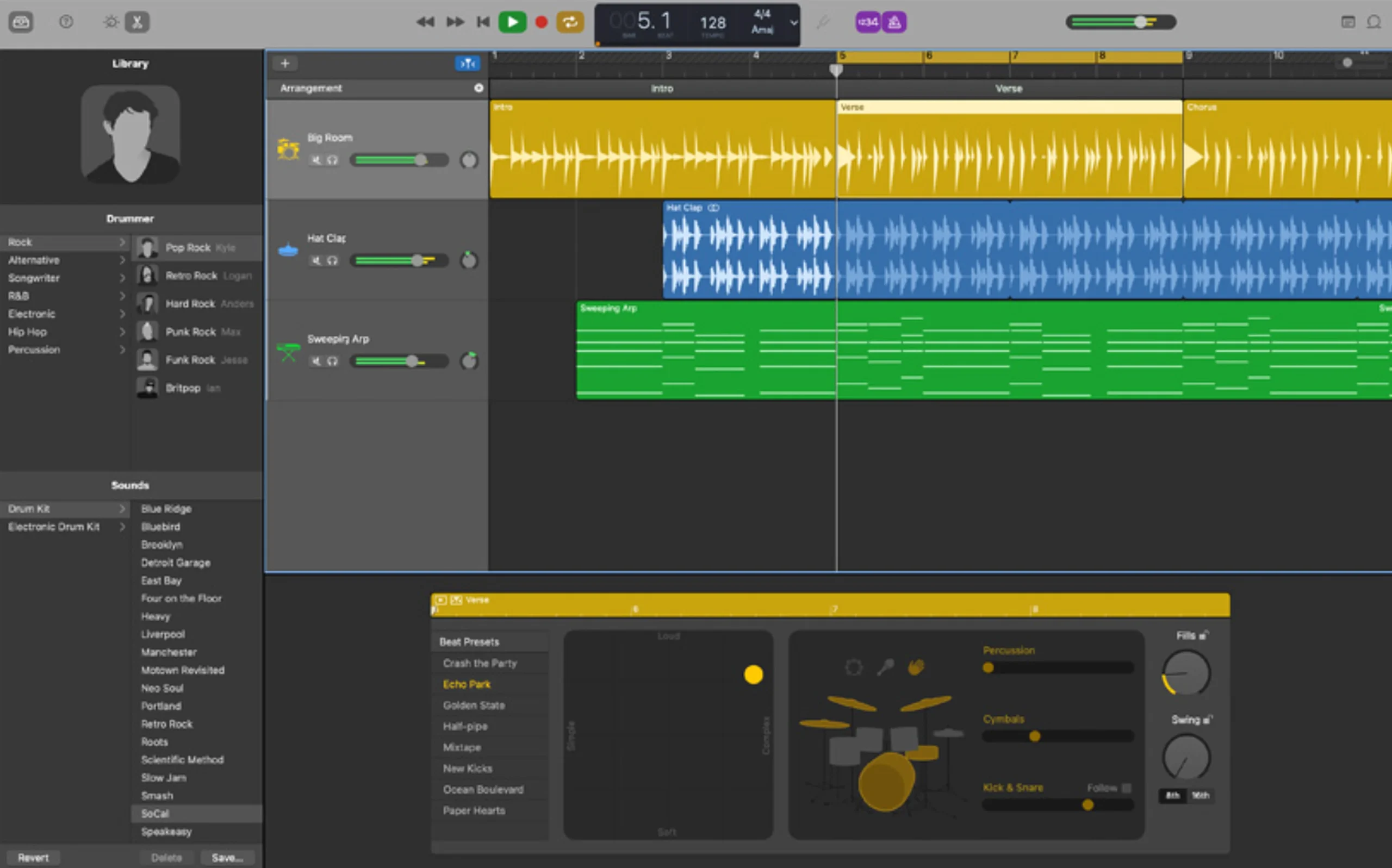
GarageBand’s Drummer feature generates performances that respond to musical controls rather than requiring every drum hit to be programmed manually. You can choose a drummer, select a style and adjust the complexity and intensity of the performance. For a rock song, begin with a simple verse groove and increase the complexity during the chorus.
Adjust fills to support transitions rather than allowing them to dominate every section. Drummer works especially well for creating rhythmic foundations while recording guitars, bass or vocals.
The limitation is that generated performances don’t always reflect the exact accents or unusual rhythmic ideas you might want. When precise programming matters, use MIDI editing or dedicated drum instruments rather than relying exclusively on generated patterns.
GarageBand supports recording through a Mac’s built-in microphone or an external audio interface. For vocal recording, an audio interface with a suitable microphone and wired headphones offers greater control over the recording environment.
Start by selecting the correct input device in GarageBand’s Audio/MIDI settings. Create an audio track, confirm that the microphone is receiving a signal and adjust the input gain so louder passages don’t overload the interface.
Avoid recording too hot. A vocal that peaks well below clipping can still be brought to an appropriate level during mixing.
If a singer performs the same section several times, you can use the saved takes to select the strongest phrases rather than expecting one uninterrupted performance to be perfect.
Listen carefully where edits join. Differences in microphone distance, room ambience or vocal intensity can make a technically clean edit sound unnatural.
Correct Timing Without Destroying the Groove
GarageBand for Mac includes Flex Time for adjusting the timing of recorded audio. This can help correct a guitar note played slightly late or tighten a percussion performance without rerecording the entire section. However, aggressive timing correction can produce unnatural transients or change the feel of the performance.
For multitracked instruments, such as drums recorded with several microphones, timing relationships deserve particular attention. Moving related recordings independently can change their phase relationships and affect the resulting tone.
GarageBand also provides Groove Track functionality, allowing one track to act as a timing reference for others. This is useful when tightening an arrangement around a strong rhythmic performance.
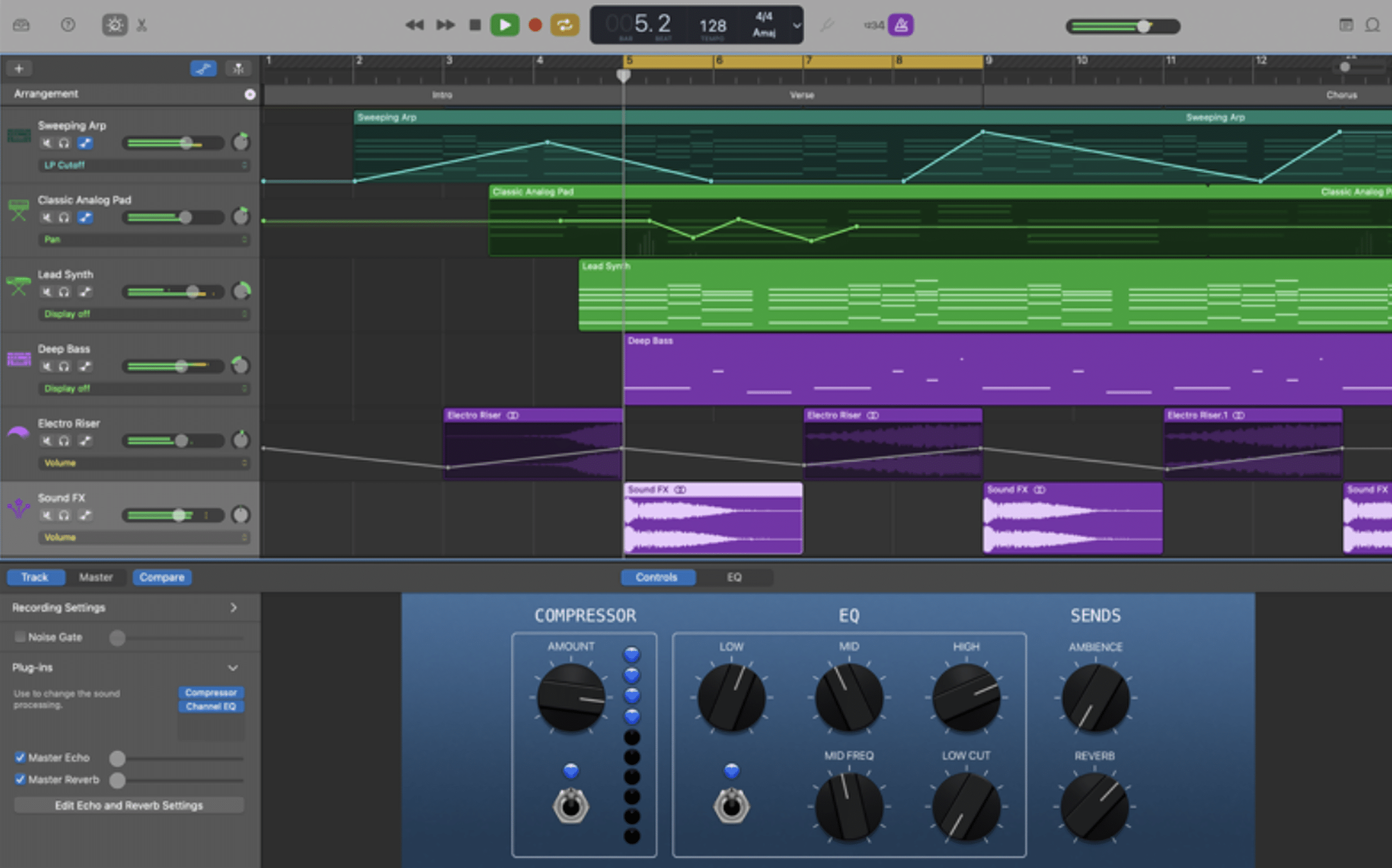
GarageBand includes EQ, compression, reverb, delay and various creative effects. Its Smart Controls provide a simplified way to adjust instrument and effect parameters without navigating complicated plugin interfaces.
For a vocal mix, start by balancing the vocal against the instruments before adding processing. Use EQ to reduce unwanted low-frequency rumble or problematic resonances, then apply compression if the performance needs more consistent dynamics.
A common mistake is compressing vocals heavily before checking whether simple clip-level adjustments would solve the problem. If one phrase is noticeably louder than the others, adjusting its level first can produce more natural results.
GarageBand’s Visual EQ provides a straightforward interface for making tonal adjustments.
However, cutting frequencies isn’t automatically better than boosting them. The objective is to correct an audible problem or shape the intended tone, not to make unnecessary changes simply because an EQ is available.
Guitarists can use Amp Designer and Pedalboard to experiment with amplifier, cabinet and effects combinations. A clean guitar recording can be transformed using overdrive, modulation, delay and other effects without connecting a physical guitar amplifier.
Bass Amp Designer provides additional options for shaping low-frequency instruments. For recording, consider whether the effects are part of the intended performance or simply monitoring tools.
Keeping a clean recording available provides more flexibility if the original tone doesn’t work once additional instruments are introduced.
On Mac, use Share > Export Song to Disk to create an audio file for listening, sharing or uploading.
Choose an uncompressed format such as WAV or AIFF when delivering audio for further production. MP3 is useful for smaller reference files, but its lossy compression makes it less suitable for exchanging material that will undergo extensive additional processing.
If another producer needs individual instruments, prepare separate aligned audio exports rather than sending only the GarageBand project file. GarageBand’s native project format isn’t universally supported by other DAWs.
GarageBand provides a substantial selection of recording and music-production tools without requiring a paid upgrade.
GarageBand is particularly useful for musicians who want to record original songs without learning a complicated DAW.
Begin with a guitar or keyboard performance, add a Drummer track and record bass and vocals on separate tracks. Use multiple takes to refine the vocal and balance the arrangement using GarageBand’s mixer controls and built-in effects.
Once the production is complete, export the finished song as an audio file. This workflow provides enough flexibility for demos, independent releases and songwriting projects without requiring paid software.
GarageBand includes software instruments that can be played using an onscreen keyboard or programmed through MIDI editing. Start with a drum pattern, add a bass instrument and create supporting chords using a synth or electric piano.
Use Apple Loops for additional percussion or textures, but edit their placement so the arrangement develops naturally. On iPhone and iPad, the Beat Sequencer provides a more immediate method for programming rhythmic patterns using a step-based grid.
GarageBand’s mobile edition is useful for capturing ideas away from a studio. You might create a rhythm using Live Loops, record a short melody with a Touch Instrument and save the project to iCloud Drive.
The project can then be transferred to GarageBand on Mac for further recording and mixing. However, project compatibility isn’t entirely symmetrical.
GarageBand for Mac includes features unavailable on iPad, so ordinary Mac projects cannot simply be opened as fully editable mobile projects.
Apple provides specific sharing workflows for continuing Mac projects on mobile devices.
If you’re collaborating with someone using another DAW, avoid assuming they can open a GarageBand project directly. Export a complete reference mix and separate audio files for the important instruments.
Ensure each exported file begins at the same position so the recordings align correctly when imported into another workstation. Keep a backup of the original GarageBand project and any recorded audio.
For users who eventually move to Logic Pro, GarageBand projects can be opened in Logic, providing a convenient upgrade route without rebuilding the entire arrangement.
No. Apple doesn't provide an official Windows version of GarageBand.
Files advertised as GarageBand installers for Windows, including .exe downloads, are not official Apple releases.
If you're using Windows, free alternatives include Cakewalk Sonar Free, Waveform Free and BandLab.
These applications provide different production workflows, but they allow you to record and arrange music without purchasing a Mac.
Start by checking your macOS version.
The current GarageBand App Store listing requires macOS 15.6 or later. Older Macs may be unable to install it.
Open Apple menu > About This Mac to check the installed operating system.
If your Mac supports a compatible update, install the appropriate macOS version before retrying.
Also confirm that you're signed into the App Store, have sufficient available storage and can download other applications.
If GarageBand was previously obtained through your Apple Account, check your purchase history for re-download options. Availability of older compatible versions isn't guaranteed.
Yes. GarageBand is free to download and use on compatible Apple devices.
There is no subscription required to unlock recording, MIDI sequencing, virtual instruments or exporting.
Apple also provides additional free sounds and loops through the GarageBand Sound Library.
GarageBand is separate from Logic Pro, which provides more extensive professional production features.
GarageBand may not install its entire sound collection during the initial application download.
On Mac, open GarageBand > Sound Library > Download All Available Sounds.
Ensure the Mac has sufficient storage and a working internet connection.
On iPhone and iPad, open the Sound Library inside GarageBand and download the additional packs you want.
If sounds remain unavailable, check for application updates before reinstalling the software.
GarageBand for Mac supports compatible Audio Units plugins, not VST2 or VST3 plugins directly.
If a plugin developer supplies both AU and VST versions, install the AU version for GarageBand.
Third-party Audio Units commonly install within the Mac's Audio Plug-Ins Components folders.
If GarageBand crashes after installing a plugin, temporarily disable Audio Units to determine whether the problem is caused by an incompatible effect or instrument.

Qualified sound engineer, music producer and DJ. Founder of Jeffro Music, specialising in music production software reviews, sound design and practical resources for music creators.