Waveform Free is a digital audio workstation for recording, programming and mixing music without a fixed track-count limit. It combines multitrack audio recording, MIDI sequencing, built-in synthesis, sampling and third-party plugin hosting, allowing recorded performances and programmed instruments to share the same arrangement.
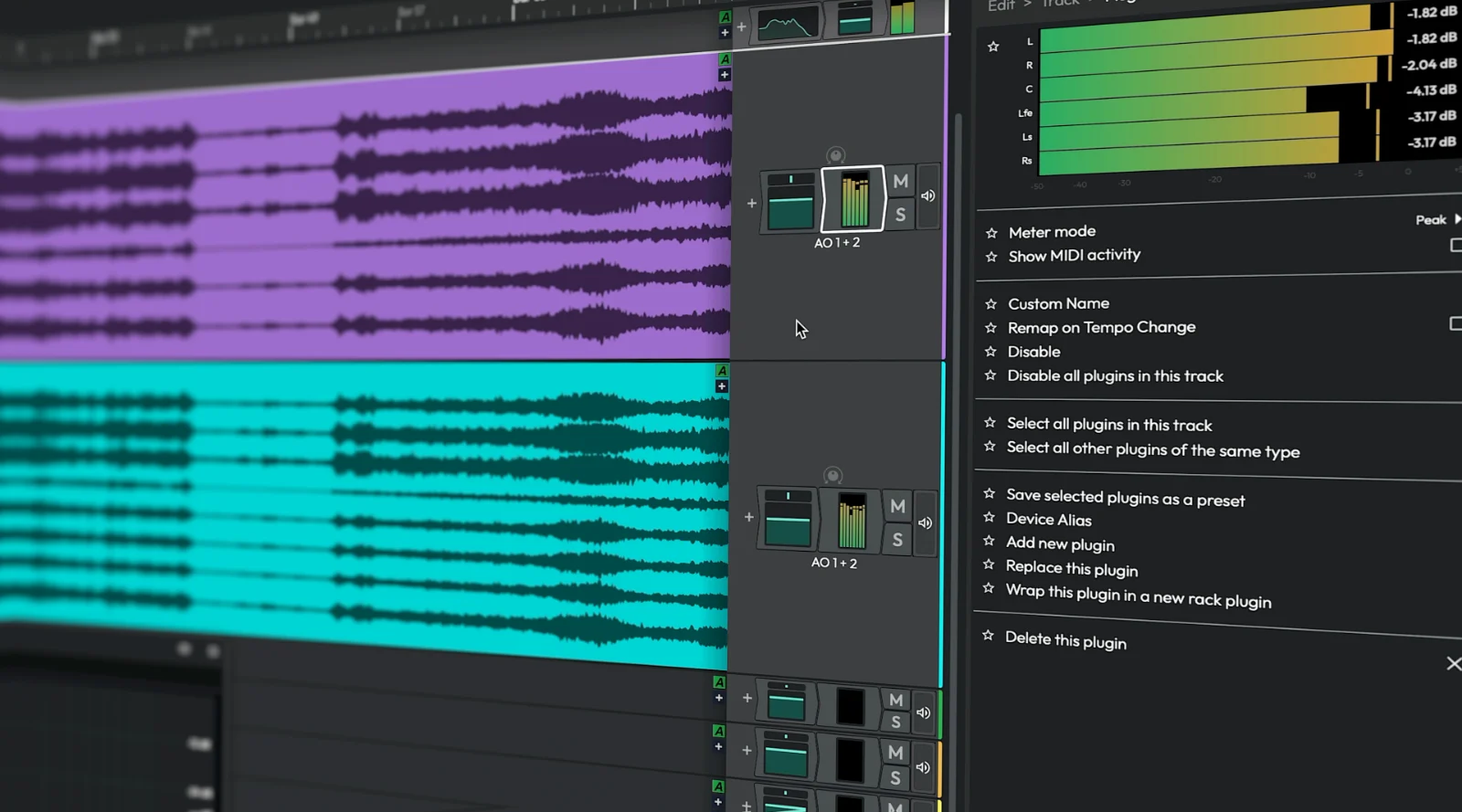
Its inline mixer places processing directly beside each track rather than relying on a separate mixing console. Even the Volume & Pan control and level meter behave as movable plugins, allowing you to position gain adjustments and metering at different points in the signal chain.
Waveform Free 14 also introduces a redesigned browser, refreshed audio effects and a rewritten audio engine intended to improve processing efficiency.
Linux availability: Tracktion now supports Waveform Linux 14, with Ubuntu 24.04 officially tested and Waveform Pro features unlocked automatically. While this looks promising, I’m personally not quite ready to give it my full recommendation as a Linux DAW. I’d like to see more consistent results across different distributions, audio drivers and third-party plugins before I can confidently stand behind it.
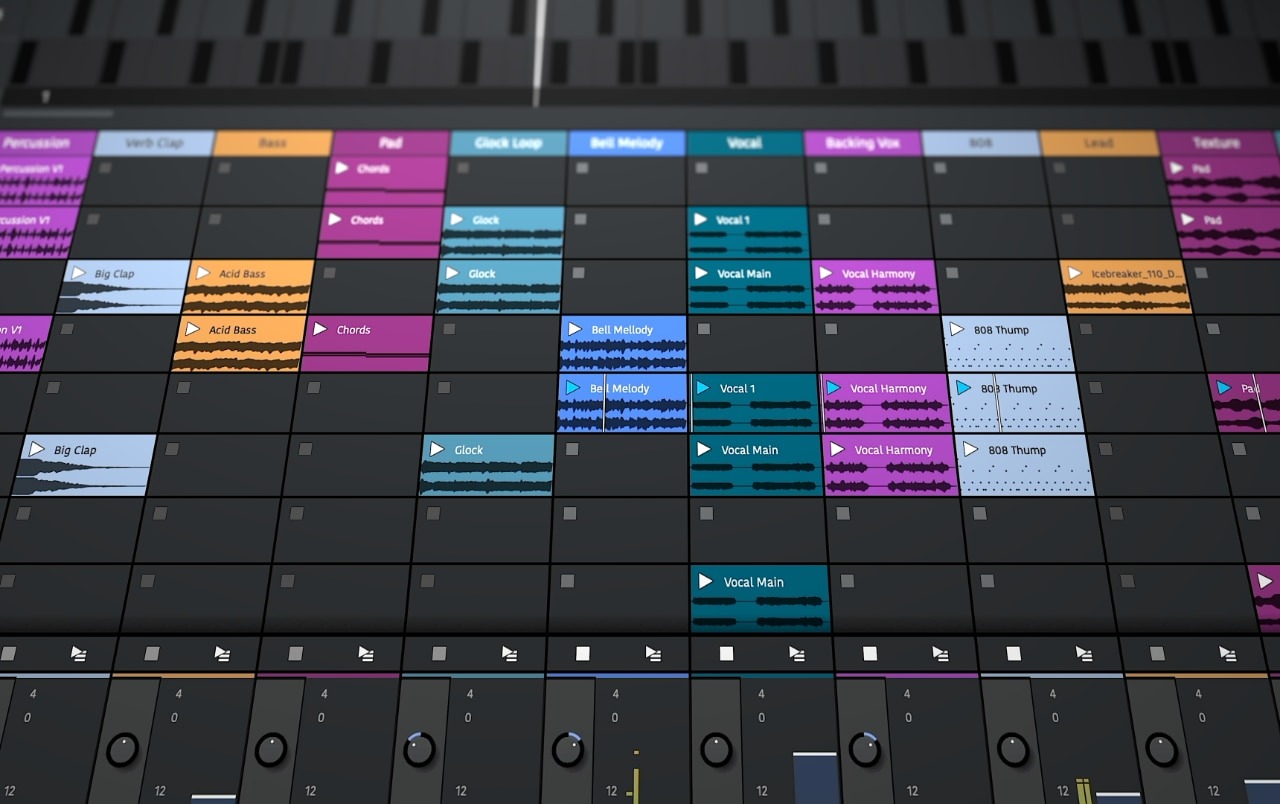
Waveform does not require separate track types for audio, MIDI and Step Clips. A standard track can accommodate these different forms of material, with an instrument plugin generating sound from MIDI instructions.
This makes it possible to combine a recorded guitar performance, programmed percussion and synthesised bass without dividing the arrangement into different production environments.
Step Clips offer more than a conventional drum grid. Each clip can contain multiple pattern variations arranged into sections, allowing a rhythm to develop without duplicating the entire sequence. Individual steps support velocity and gate adjustments, while rows can use different MIDI notes, channels or instrument destinations.
A single pattern can therefore combine differently accented hits and changing note lengths rather than repeating an identical performance.
The Pattern Generator provides another approach to composition by creating editable arpeggios, chords, basslines and melodies inside MIDI clips. I love a good arp. You can choose a musical key, scale and pattern type, then adjust the generated notes to develop an original phrase.
Turn off Auto Update before making detailed manual edits, otherwise changing generator settings can overwrite those adjustments. Pattern generation is available in all editions, although the Follow Chord Track option requires Pro.
Waveform’s Plugin Racks extend mixing beyond a conventional series of effects. Connect plugins in sequence, split a signal into parallel paths and combine the results within a single rack. For example, a bass track can retain its clean low frequencies while a second path adds distortion, allowing the processed sound to blend with the original rather than replacing it entirely.
The built-in 4OSC synthesiser supplies four oscillators, filtering, modulation envelopes, LFOs and effects for developing basses, leads and atmospheric textures. Waveform Free 14 also includes the Micro Drum Sampler, Micro Sampler and Rompler, providing options for drum programming, sample playback and preset-based instruments without immediately installing additional plugins.
Shared effects use paired Aux Send and Aux Return plugins. Their placement determines how the signal behaves: positioning an Aux Send after Volume & Pan makes the effect level follow the track’s volume control. On a shared reverb bus, keeping the reverb fully wet prevents the return from adding an unnecessary copy of the original dry signal.
Waveform Free 14 introduces a redesigned browser with tags, favourites and smart lists for organising plugins, presets, samples, clips and tracks. Rather than navigating separate folders whenever you need an instrument or effect, you can search across categories and build collections of frequently used sounds. This becomes increasingly useful as third-party plugins and sample libraries accumulate.
The updated audio engine is designed to reduce processing overhead and improve plugin delay compensation across different routing configurations. Waveform also includes refreshed compressors, equalisers, reverbs and modulation effects, alongside utility processors such as a spectrum analyser, mono converter and mid/side splitter.
These tools allow basic corrective mixing and more involved signal processing without requiring a separate effects bundle.
Exporting is flexible enough for complete mixes and individual production assets. Set a defined timeline range, render the arrangement to WAV or another format you want, or export tracks as separate files for mixing elsewhere.
Clip-rendering operations also allow programmed material to be converted into audio while retaining the original MIDI or Step Clip for later changes.
Recording, composition and routing tools for productions that combine live performances with programmed instruments.
Waveform’s clip-rendering and export tools are useful for producing short sound effects, transitions and musical cues for Unity or Godot. Develop several variations within one project, render the relevant clips and export the required sections as WAV files rather than bouncing the entire arrangement for every asset.
Use the In and Out markers to define an exact export range and check the resulting files before importing them into a game engine. Unwanted silence can delay the start of an effect, while abrupt waveform boundaries or truncated reverb tails can produce audible clicks.
For seamless loops, test the transition from the end of the file back to its beginning. A sound that plays correctly once may still produce an audible discontinuity when repeated continuously.
If a software instrument or external synthesiser repeatedly misses its first MIDI note, try leaving a short lead-in before the phrase. Move the clip to Bar 2 and begin playback from Bar 1, giving the instrument additional time to initialise before receiving the first notes.
This is a troubleshooting workaround rather than a guaranteed solution. If notes continue to disappear, inspect their exact starting positions and confirm that the correct MIDI channel and instrument routing are selected. Sample-based plugins may also need additional time to load their sounds.
Open Settings → Audio Devices after installing Waveform and select the driver appropriate for your hardware. ASIO is generally recommended for dedicated audio interfaces, while Windows Audio can be suitable when using a computer’s integrated sound system.
Smaller buffers reduce monitoring latency but give the processor less time to complete each audio block. Larger buffers can improve playback stability at the expense of responsiveness. If crackling persists, investigate demanding plugins, driver conflicts and sample-rate settings rather than assuming the buffer is the only cause.
Waveform Free provides synthesis and basic sampling tools, but additional instruments can broaden its range of acoustic sounds and synthesis techniques. These free plugins are useful starting points:
Decent Sampler and Surge XT are particularly useful for Linux producers, since both offer native Linux plugin builds. Whichever instruments you install, confirm that Waveform has scanned the relevant plugin directory before attempting to load them into a project.
Enable Options → Retrospective record, select a buffer length and configure the relevant track input before playing.
Waveform continuously retains incoming material for the configured period, allowing a recent performance to be recovered using the retrospective-record control.
Timing depends on when you retrieve the recording. Activating the control while the transport is running places the recovered audio in sync with the timeline. When playback is stopped, the recovered clip is placed at the cursor and may require manual alignment.
The feature cannot recover audio captured before retrospective recording was enabled or material that has already passed beyond the retained buffer.
A 30-second buffer is often sufficient for recovering short performances, while longer settings are available for extended recording situations.
Check the position of Volume & Pan in the inline mixer. Waveform processes plugins from left to right, meaning a level adjustment made before a compressor changes the signal entering that compressor.
If Volume & Pan sits before the compressor, reducing the level can result in less compression because fewer peaks exceed the threshold. This changes the processing behaviour rather than simply reducing the final track volume.
Move the compressor before Volume & Pan when you want the track's volume control to operate after compression.
Keep gain adjustments ahead of the compressor when changing the input level is intentional, such as controlling how aggressively a vocal or bass performance triggers the effect.
Enable Pass Through Plugins in the clip-render dialogue. A Step Clip contains MIDI instructions rather than recorded audio, so Waveform must include the instrument plugin in the rendering process to generate audible output.
Confirm that the assigned instrument produces sound during normal playback before rendering. If the result is still silent, inspect the MIDI note assignments and make sure the instrument receives the expected channel and note information.
Keep a copy of the original Step Clip when further programming changes may be required. Mute either the rendered audio or the original programmed part when comparing them, otherwise both versions may play simultaneously.
Multiple rack instances can reference the same Rack Type. The Rack Type contains the plugins and their internal connections, meaning changes to its processing structure affect every instance using that definition.
Each instance maintains its own routing, levels and wet/dry controls, but it is not automatically an independent copy of the rack's internal plugins. Changing an effect setting inside the shared Rack Type can therefore alter the sound of several tracks.
Create a separate Rack Type when another track requires different processing or plugin settings. Use multiple instances of the original Rack Type when shared processing is intentional, such as applying the same effect configuration to several instruments.
Set the In and Out markers to a common range, open Export → Render to a file, and enable Only render the marked region and Render Each Track to a Separate File.
Disable Remove Silence at Start/End so that tracks entering later retain the leading silence necessary for correct placement in the arrangement. This ensures that the exported files share the same starting reference rather than beginning independently at their first audible note.
Leave normalisation and RMS-based level adjustment disabled when preserving the original mix relationships is important. Import every file at the same timeline position in the receiving DAW, then compare the reconstructed arrangement with a stereo reference export before handing over the project.

In order to get your free version, register on the Traction wesbite, download the Traction download manager, sign in. Download!