LMMS is a free, open-source digital audio workstation for building beats, programming melodies, shaping sounds and arranging complete tracks on Linux, Windows and macOS. It’s built-in instruments, samples, effects and automation tools give producers a starting point without needing a separate plugin collection.
Its workflow separates the repeating parts of a production from the arrangement. Build the rhythm, develop the musical phrases, then decide where those elements enter, change and drop away in the Song Editor. The emphasis is on composing inside the computer rather than recording performances through microphones.
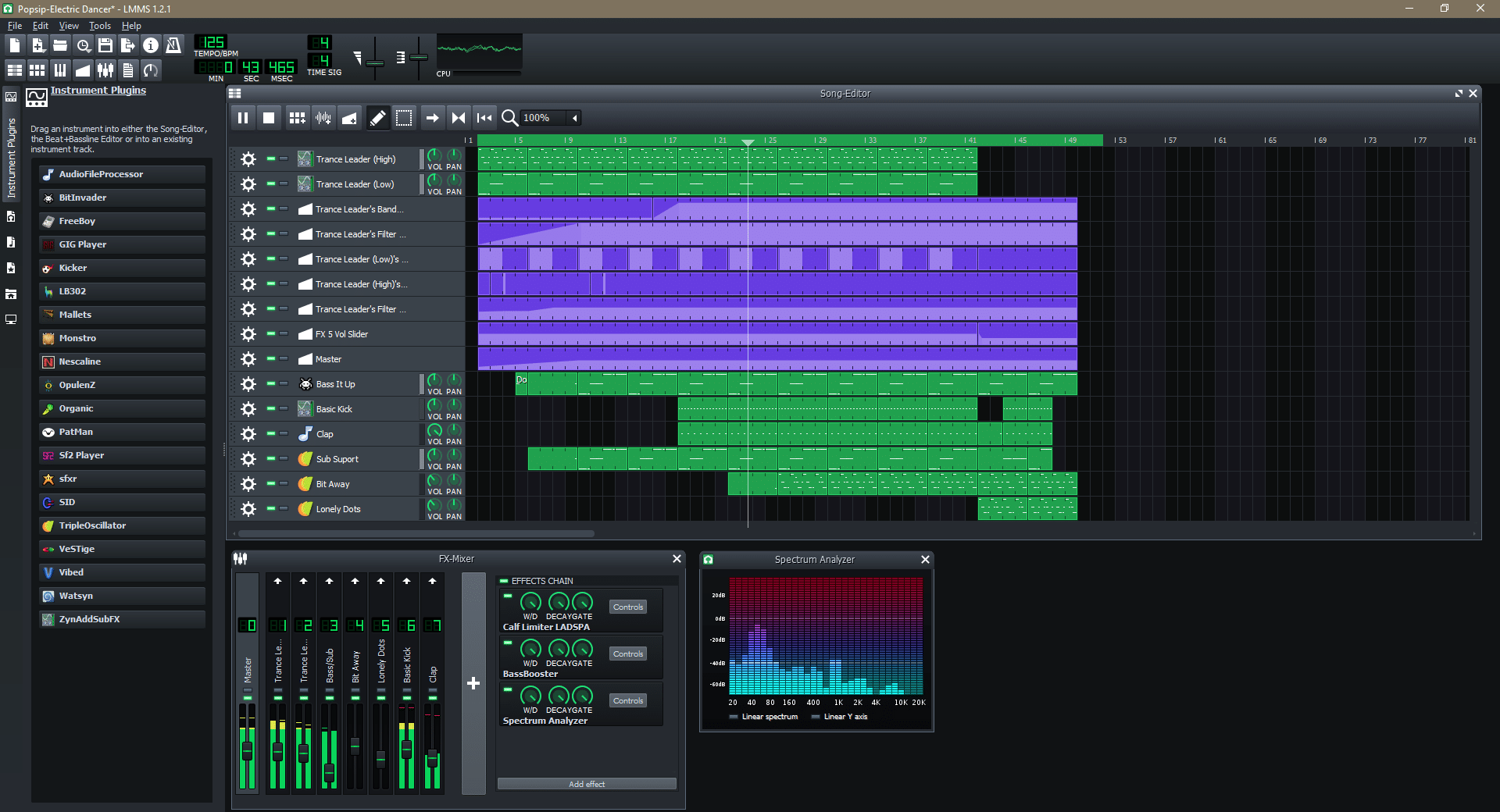
The Beat+Bassline Editor provides a step-based workspace for repeating rhythms, while the Song Editor brings those patterns together with melodies, imported audio and automation. A recurring drum groove can remain compact in the arrangement instead of filling the timeline with individual hits.
The Piano Roll takes the programming beyond switching steps on and off. Edit note positions, lengths and velocities to introduce accents and variation. For a hi-hat part, that means controlling which hits lead the rhythm and which sit underneath it, rather than relying on every note playing at the same strength.
Built-in instruments include TripleOscillator, Monstro, ZynAddSubFX and Kicker, covering different approaches to synthesis and drum creation. The sample and preset browser also supports auditioning sounds before adding them to the project, helping you compare material without repeatedly creating and deleting tracks.
Audio recording is the important limitation. Stable LMMS 1.2.2 can arrange imported recordings, but it cannot record a microphone or instrument directly. Vocals and live parts need to be recorded elsewhere before being brought into the project.
AudioFileProcessor turns an imported sample into a playable instrument. Set its playback boundaries, reverse it or use forward and ping-pong looping to develop a short sound into a different texture. This is useful for building an instrument from a recorded fragment rather than simply placing the whole file on the timeline.
LMMS also distinguishes between effects attached to an instrument and processing on an FX Mixer channel. Effects that define a sound can be saved with the instrument preset, while mixer processing can remain specific to the current track’s balance. For example, distortion that gives a bass patch its character can stay with that preset, while the mixing decisions remain in the session.
Automation adds movement across the arrangement, while LFO and Peak controllers provide other ways to drive compatible controls. A drawn automation curve can shape a build-up; an LFO can supply repeated modulation without manually drawing every cycle. These are different tools for different kinds of movement.
Pattern-based composition, synthesis and mixing tools for developing programmed ideas into finished arrangements.
Create an automation track in the Song Editor and add an automation block covering the required section. On Windows and Linux, hold Ctrl and drag an automatable control onto that block to connect it. Double-click the block to open the Automation Editor and draw the parameter changes.
For a build-up, use an eligible filter cutoff control and place the automation across the full phrase rather than inside a repeating beat pattern. Add an explicit return value where the filter should reset. Naming the block after the instrument and parameter also makes the arrangement easier to revisit.
Open each drum instrument and assign a different FX channel number in its instrument controls. This sends each instrument to its chosen mixer channel, where its level and effects can be managed separately.
For example, assign the kick, snare, and hats to three separate channels and name them accordingly. Add snare-specific processing to the snare channel rather than the master. Keeping the drums together in a beat+bassline pattern does not require them to share one processing chain.
AudioFileProcessor changes pitch by changing the sample’s playback speed. Higher notes play the file faster and therefore finish sooner; lower notes play it more slowly. This is sample transposition, not independent pitch and time stretching.
Set the instrument’s base note to match the recorded sample’s pitch so the keyboard triggers it correctly. For a bass part that must retain the same duration across different pitches, use an appropriate synthesiser or prepare time-stretched versions in an audio editor. Changing the base note alone does not separate pitch from duration.
LMMS can stop processing an effect when it no longer detects input. That can cut off reverb or delay even when the effect itself is set to decay for longer. Enable Keep effects running even without input in Settings to prevent that behaviour.
Alternatively, increase the effect-chain Decay control beside the wet/dry setting. This controls how long LMMS keeps the effect active after silence; it is separate from the reverb plugin’s own decay-time parameter. Listen to the complete tail after the source stops rather than judging the setting while the instrument is still playing.
Keep the external samples and SoundFonts with the project when backing it up or transferring it. A standard .mmpz file is a compressed project document, not a self-contained archive of every sound it references. Sending the project file alone can leave the receiving system without the required material.
A practical approach is to create a dedicated project folder, keep its external sounds organised inside it and retain the original files until the transferred project has been checked. Reopen the project on the destination computer and reselect any files whose stored paths no longer resolve.
AudioFileProcessor’s file-open control allows its source sample to be selected again.

Qualified sound engineer, music producer and DJ. Founder of Jeffro Music, specialising in music production software reviews, sound design and practical resources for music creators.