MusE is a free, open-source DAW for Linux that combines detailed MIDI sequencing with multitrack audio recording, plugin processing and automation. Its tools are particularly relevant to productions involving hardware synthesisers, software instruments and recorded performances within the same arrangement.
MusE separates the musical performance from the device playing it. MIDI tracks send notes and controllers to an assigned instrument, while audio tracks handle recording and processing. That makes it possible to retain an editable synth performance alongside its recorded output rather than choosing between MIDI flexibility and audio mixing.
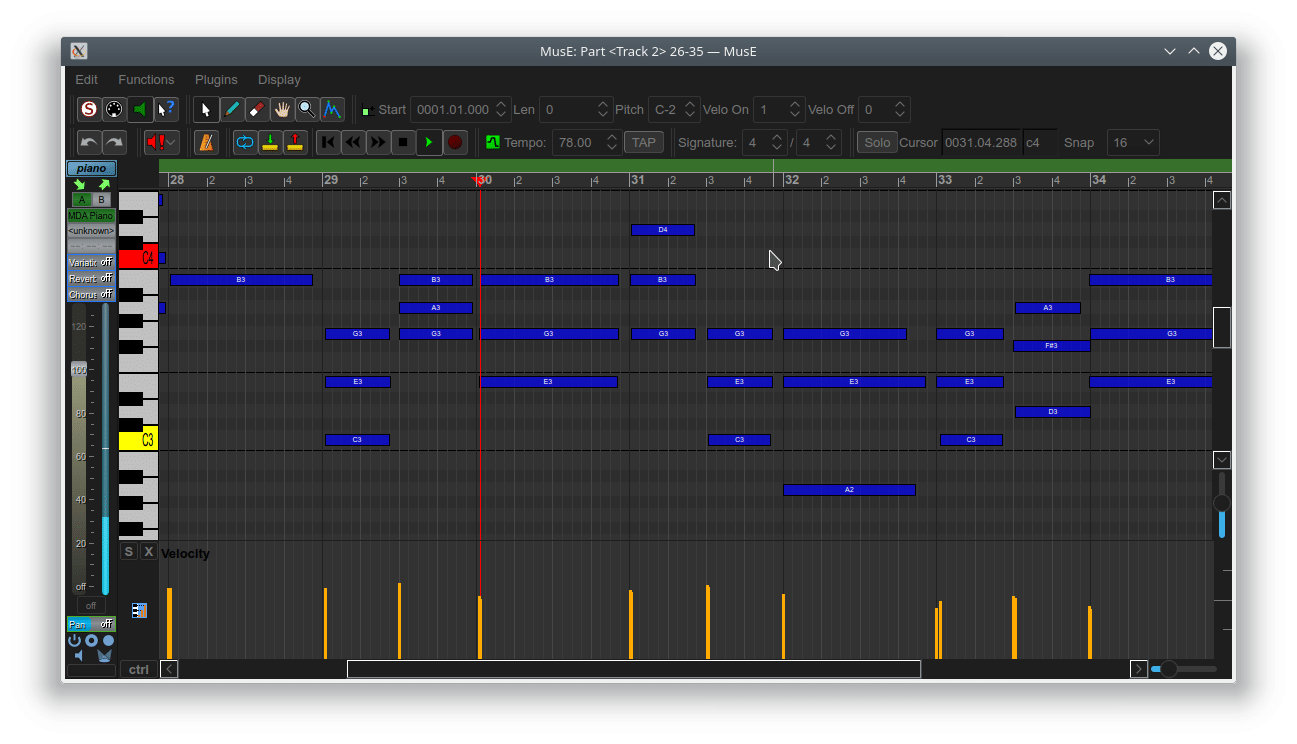
MusE provides Piano Roll, Drum, Event List and Score editors rather than forcing every MIDI task into one view. Use the note grid to develop a phrase, switch to the drum editor for percussion and inspect individual messages in the event list when a performance needs more precise attention.
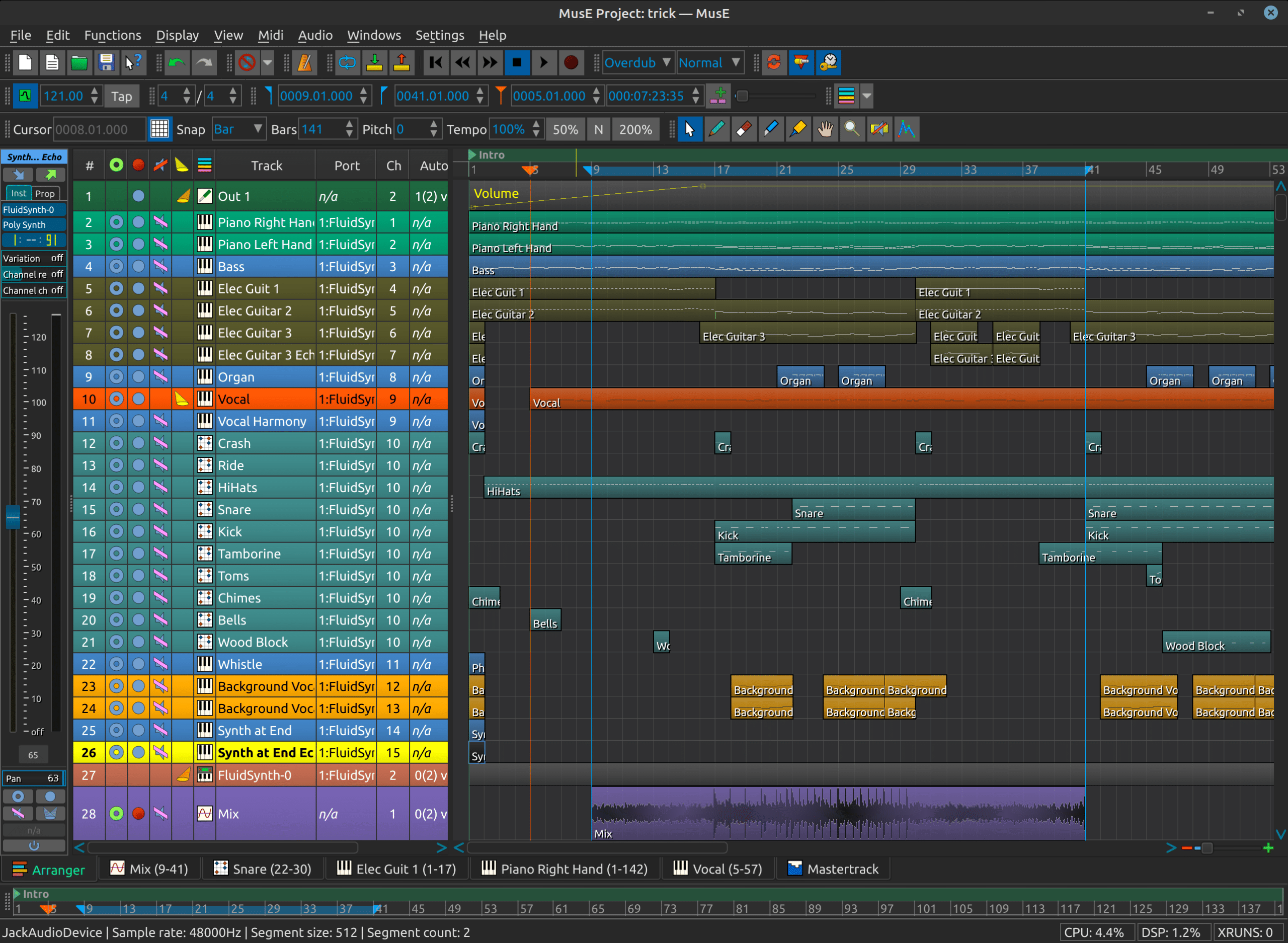
Parts from several drum tracks can be opened together in one Drum Editor. For example, keep kick, snare and percussion on separate tracks, then edit their parts together to see how the rhythm fits. The display can distinguish sounds belonging to different tracks without requiring those tracks to be merged.
Numbered MIDI ports make changes to the studio easier to manage. Tracks refer to a port, while the port connects to the actual hardware or software instrument. When the device connection changes, you can update that assignment rather than working through every track that uses it.
MusE distinguishes between Audio Input tracks, which bring signals into the session, and Wave tracks, which hold recorded audio. Group tracks provide shared level and processing control, while auxiliary tracks create sends for effects used by several sources. This gives sequenced instruments and recorded parts a common mixing environment without confusing their different signal paths.
Audio track types have plugin racks for processing chains, with support for VST2, LV2, DSSI and LADSPA. Effects can therefore sit on an individual recording, an instrument or a shared group, depending on whether the processing defines one sound or the balance of several parts.
Two independently configurable mixer windows help organise larger sessions. One could show MIDI and synthesiser tracks while the other concentrates on recorded audio, groups and effects returns. Those visibility choices can be stored in a song template, keeping the controls you need accessible without displaying every channel at once.
MIDI editing, recording and routing tools for productions that combine external equipment with software-based instruments.
An active Audio Input meter confirms that sound is entering MusE, but it does not mean a recording track is receiving it. Create a Wave Track, route the Audio Input to it and arm that Wave Track for recording. Also check that the Wave Track reaches the appropriate Audio Output for playback.
Save the song before recording: MusE uses the song’s location to determine where recorded audio is stored. Enable recording on the main transport as well as the track, then start playback. Using Create project subfolder helps keep the song and its recordings together.
Use the routing menus to create a soloing chain between the MIDI track and the Audio Input track carrying the synthesiser’s return. This tells MusE that both sides belong to the same audible signal path.
MusE’s phantom soloing keeps connected tracks active when they are needed to hear the soloed source.
The chain prevents the hardware’s returning audio from being excluded simply because you soloed the MIDI performance rather than its audio input. It is particularly useful when several external instruments share a session.
MusE handles MIDI controller data differently from audio automation. Moving an on-screen MIDI control is not automatically recorded as a performance. To capture controller movements, use an external MIDI controller while both the MIDI track and transport are recording.
Alternatively, open the MIDI part, use Ctrl to display its controller lane and draw the values. This distinction matters when automating MIDI volume or modulation rather than an audio fader or plugin parameter.
Use Touch mode on the audio track. During playback, adjust the control over the passage you want to change; releasing it returns MusE to reading the existing automation. Switch back to Read after the correction.
Write behaves differently: once the control has been touched, it can replace automation across the recording pass, including the earlier section. Touch is the more appropriate starting point for a local correction.
Open the MIDI/softsynth configuration and change the device assigned to the existing numbered port. Leave the tracks pointing to that port. MusE’s port system is designed to separate track assignments from the physical device connection.
Check that output is enabled and that the device’s status shows a working connection. For a JACK MIDI device, check its output route as well. This restores the connection for tracks already assigned to the port; replacing the synthesiser with a different model may still require changes to MIDI channels and patch selections.

Qualified sound engineer, music producer and DJ. Founder of Jeffro Music, specialising in music production software reviews, sound design and practical resources for music creators.