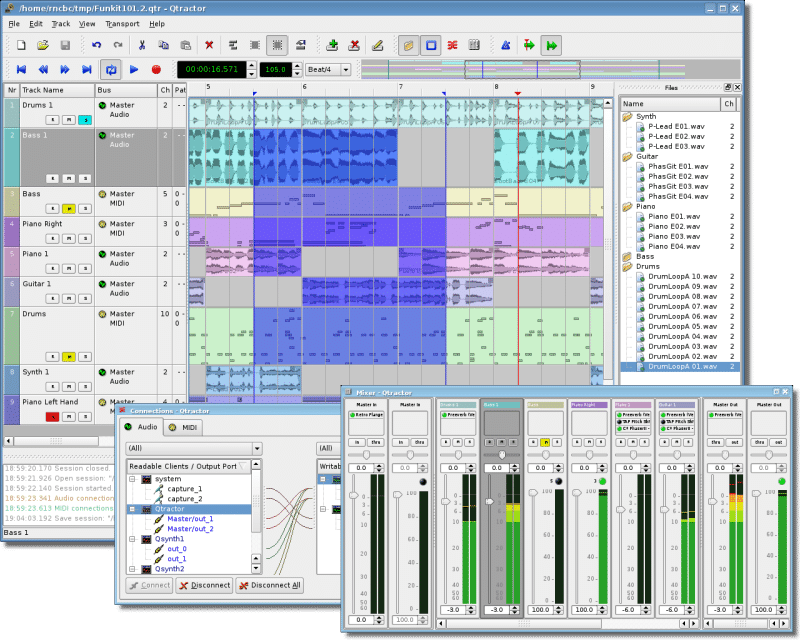
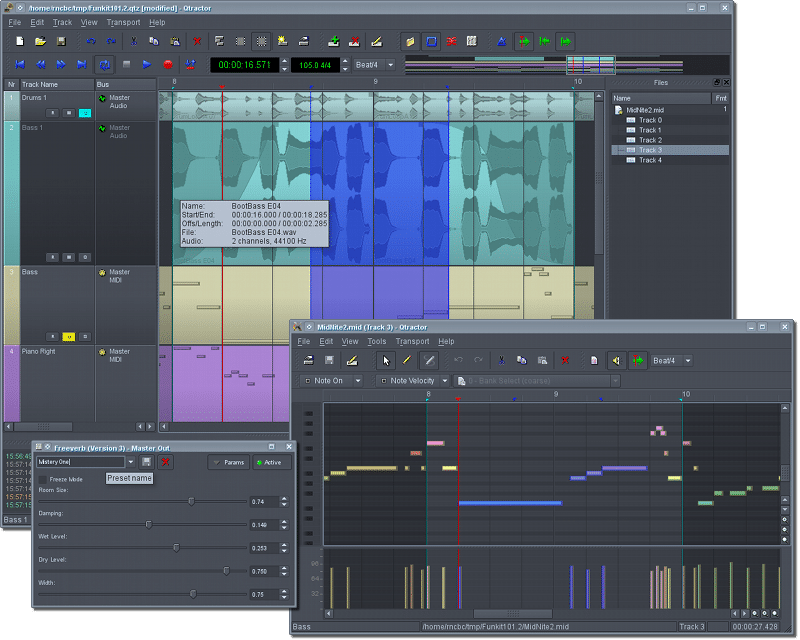
Qtractor is a free, open-source DAW built for Linux, combining multitrack recording, MIDI sequencing, plugin hosting and mixing in a traditional timeline-based workspace. It brings recorded performances and programmed instruments into the same session without imposing a fixed track limit.
Its appeal is the connection between those workflows. Start with an imported drum recording, programme a bass part, then record a keyboard performance without turning everything into audio prematurely. MIDI can drive software instruments or external hardware, while the Connections window manages the paths between them.
Qtractor’s editing tools let you split recordings, move sections and crossfade overlapping clips. That gives you a practical way to reshape a performance: shorten an introduction, move a phrase into another section or adjust the transition between two recordings without rebuilding the entire track.
The MIDI editor provides quantisation, transposition and control over note duration and velocity. Its randomisation tools can target timing, duration or velocity separately. For a programmed percussion part, that lets you experiment with variations in strength without also changing the pitches or scattering every hit across the grid.
Loop recording and punch ranges separate performing from choosing the final take. Repeat a passage continuously, or restrict recording to the section that needs another attempt. You can then compare the results rather than interrupting the performance to restart after every pass.
Qtractor hosts native VST2, VST3, LV2 and CLAP plugins alongside LADSPA and DSSI. Instruments and effects become part of the session’s processing chains, allowing you to build around the particular sounds your production needs.
Routing extends beyond inserting effects on individual tracks. Auxiliary sends feed shared processing, while inserts send audio or MIDI outside Qtractor and return it to the chain. A shared effect and an external processing loop therefore remain different routing operations, rather than being treated as interchangeable connections.
Automation supports stepped changes, straight ramps and curved transitions. You can draw nodes or record control movements during playback, then refine them afterwards. For a synth build-up, that means performing the movement first and correcting its shape rather than drawing every adjustment from scratch.
There are also version-specific improvements worth checking. Qtractor 1.6.3 introduced selectable plugin latency compensation for audio buses, making the installed version relevant when using processors that add delay to grouped signals.
Audio recording, MIDI editing and routing tools for productions that combine programmed parts with live performances.
MIDI clips copied within the same track can remain linked. Editing one then changes the other linked instances because they share the same underlying musical content. Select the copy and use Clip → Unlink before making a variation that should affect only that occurrence.
For example, keep a repeated bass pattern linked while refining the main groove. Unlink the final occurrence before adding a fill into the chorus. The variation stays local while the other repetitions retain their shared pattern.
In View → Options → General, set Loop Recording mode (takes) to First or Last. Define the loop, arm the track, then engage Record and Play. Qtractor records another take each time playback returns to the loop’s beginning.
Afterwards, use Clip → Takes → Select to compare the passes.
“First” and “Last” determine which take is selected initially; they do not limit the recording to that one attempt.
Qtractor’s auxiliary sends operate within its pre-fader plugin chain. Lowering the channel fader reduces the main track output but does not automatically reduce the signal already sent to the reverb bus. The balance consequently becomes wetter.
To control both together, place a gain plugin before the auxiliary send and use that gain control instead of the channel fader. Leave the channel fader fixed once balanced. Alternatively, adjust the send separately when an independent reverb level is intentional.
External instruments need their output recorded to an audio track before Qtractor’s offline export. MIDI notes sent to hardware or a separately running synthesiser do not themselves contain the resulting sound. Hosted instrument plugins follow a different export path and can render directly.
Record the external instrument’s output into Qtractor in real time, check that recording, then export with it included. Disable the original MIDI playback when checking the recorded version to avoid hearing both performances. Keep the MIDI track for later revisions.
In Qtractor 1.6.3 and later, open View → Buses, select the relevant audio bus and locate Latency compensation in its Input Plugins or Output Plugins tab. This is the bus-specific setting introduced for handling plugin processing delay.
Check this setting when adding a delay-inducing processor to a bus rather than immediately shifting recordings on the timeline. If the option is missing, confirm the installed Qtractor version before changing the arrangement to compensate manually.

Qualified sound engineer, music producer and DJ. Founder of Jeffro Music, specialising in music production software reviews, sound design and practical resources for music creators.