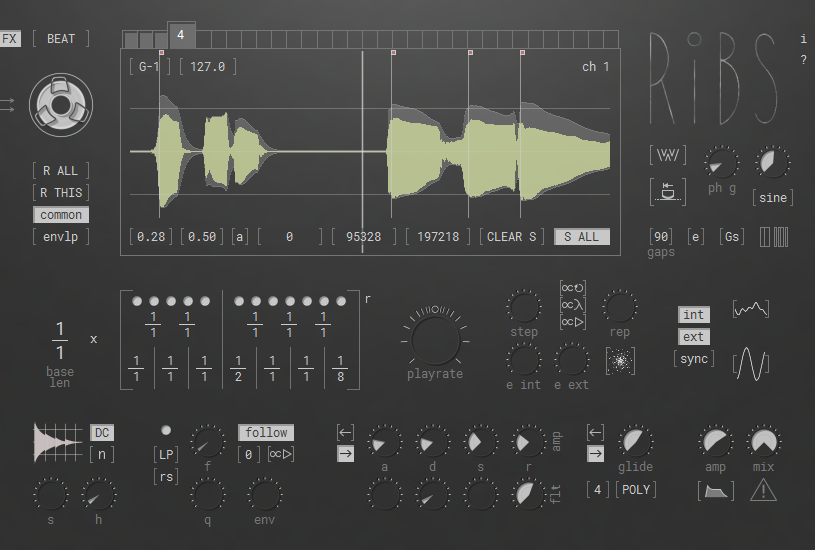
RIBS by Hvoya Audio is a free granular effect VST designed for experimental sound design, real-time audio manipulation, and evolving textures. This guide will help you fix that “no sound” issue first, then breaking down modes, workflows, and real-world use cases.
Unlike traditional granular plugins, RIBS blends audio processing with MIDI-triggered behaviour, making it feel closer to a hybrid instrument than a standard effect.
It’s one of the more complex granular VSTs because it requires both audio input and MIDI triggering to work properly. Many users experience no sound on first load, but this is usually due to routing rather than the plugin itself.
RIBS is best suited for producers looking to generate movement, texture, and unpredictable variation from audio sources. It excels in genres where sound design plays a central role, including drum & bass, dubstep, some trap, ambient, experimental, and cinematic production. I use it on drum and bass/dubstep tracks.
Rather than acting as a transparent effect, RIBS transforms audio into something entirely new. It’s particularly effective on pads, vocals, and field recordings where evolving grain behaviour adds depth and complexity.
RIBS does not behave like a typical insert effect. In many cases, it requires MIDI input to trigger granular playback, which can confuse users expecting instant audio processing.
Think of it as a hybrid between:
This distinction is key to understanding why RIBS sometimes produces no sound until correctly set up.
If you’re exploring more granular VST plugins, check out my full granular vst effect list here.
Cubase handles audio + MIDI routing differently, so setup is slightly more involved.
Now:
If there’s no sound:
RIBS is not a standard insert effect.
It works like this:
Without both, the plugin won’t output anything.
RIBS will now:
If you hear nothing:
FL Studio does not natively handle audio + MIDI routing on a single plugin, so the easiest method is using Patcher.
Now:
Audio feeds into RIBS
MIDI controls grain playback.
If no sound:
Logic requires sidechain routing for plugins like RIBS.
Now:
If no sound:
RIBS captures incoming audio into a buffer, then slices it into small segments called grains. These grains are replayed, stretched, pitched, and modulated to create new textures.
A key concept is that MIDI triggers control when and how the buffer is used. This is why users often experience silence, the plugin is waiting for instructions rather than passively processing audio.
Understanding the buffer-trigger relationship is essential for using RIBS effectively.
Don’t like orange buttons? You can download RIBS Free Granular VST here: [Download RIBS Free Granular VST]
What’s actually happening:
You’re scrubbing through the recorded buffer, not “scratching” in the traditional sense. The effect comes from re-triggering grains at different positions, not waveform scratching.
(BEAT MODE)
What’s actually happening:
RIBS distributes grains rhythmically across the buffer, creating polyrhythmic or staggered playback, not traditional step sequencing.
(FX Mode)
What’s actually happening:
RIBS continuously captures audio and replays it as overlapping grains, creating evolving, time-stretched textures.
No, Ribs doesn’t support this feature currently. For complex processing, recording live performances is recommended.
For DAWs like Ableton Live, right-click the multi-input button, go to channel configuration, and select stereo channels 2-4. See the linked video tutorial for guidance.
Use FX mode, which allows buffer filling without requiring combined audio/MIDI routing.
If you’re looking for a free granular effect VST that goes beyond basic processing, RIBS offers a deeper, more experimental approach. It takes more setup than most plugins, but once configured correctly, it becomes a powerful sound design tool for evolving textures and glitch-style effects.
Need help understanding RIBS? Download the official manual for full controls, modes and setup instructions.